How to Plan a Month of Content With a Simple Calendar
Published 2026-10-16
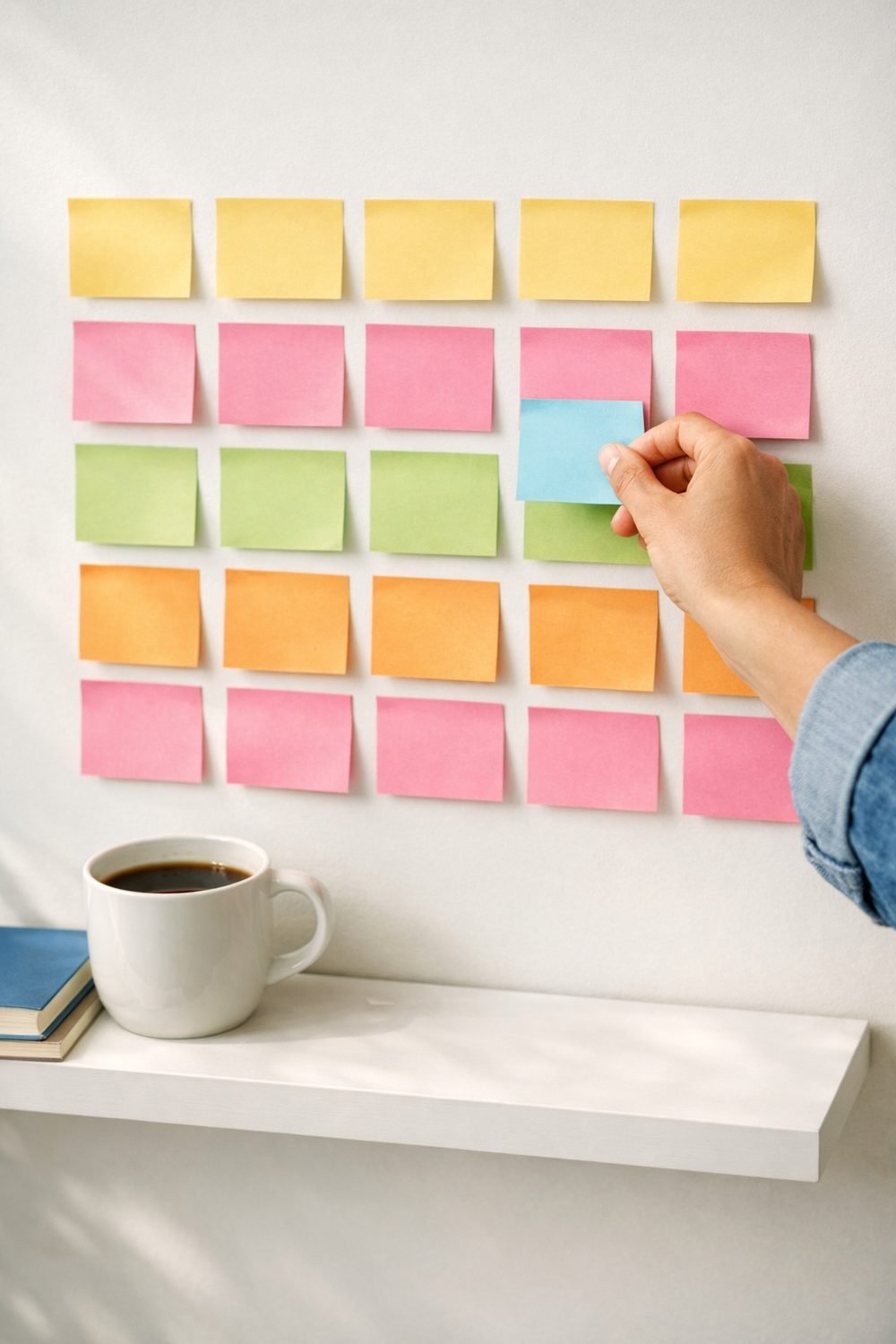
A simple calendar makes it much easier to plan a month of content without last-minute stress. This guide walks through picking posting days, choosing themes, adding key dates and batching your writing. It finishes with a month-end review, where basic content audit tools help you see what is working and what to change next.
You might wake up, open your phone, and think, "Okay, what do I post today?" Some days you'll have an idea. Most days I stared at the screen, posted something half-hearted, or skipped it. Planning a whole month at once fixed that for me. Not because it made me more creative, but because it took the daily guessing away.
This guide walks you through how I plan a month of content with a simple calendar in one sitting. It usually takes me about an afternoon. Your first time might take a bit longer, and that's fine.
Short on time? Our top picks: Google Sheets, Notion, Trello and Canva. See all picks
What you need
- A monthly calendar grid. Paper, a printable (you can make one in Canva), a spreadsheet, or a plain notes app all work.
- A pen or pencil if you're going the paper route. Pencil is friendlier, since plans change.
- A list of any dates coming up that matter to you or your customers.
- Your last month of posts, if you have them. Even a quick scroll back helps.
- One to three hours of quiet time. Coffee optional, but recommended.
You don't need a scheduling tool or a blog content management system to start. It's better to skip those until you've planned at least one month by hand. Otherwise you spend your energy learning the app instead of thinking about what to say.
Step 1: Pick your posting days for the month
Be honest with yourself here. How many times a week can you really post, on a normal week, when life is a little messy? Not your best week. Your average one.
Three posts a week you can keep up is better than daily posts you drop after ten days. Posting daily is a common trap. It's easy to last a couple of weeks, then go quiet for a month and feel guilty the whole time. Consistent and smaller beats ambitious and abandoned.
Once you've picked a number, choose the actual days. Monday, Wednesday and Friday is a common pattern because it spreads things out. But if your weekends are calmer, maybe Saturday works better for you. Mark those days on your monthly grid with a small dot or a circle.
Tip: Pick days based on when you have time to show up and reply to comments, not just when you think people are online. A post you can't follow up on feels a bit like leaving a party right after you arrive.
Step 2: List your themes
Themes are the buckets your posts fall into. They stop every post from being the same kind of thing, and they make filling the calendar so much faster later on.
Choose three to five themes for the month. For a small online business, these might be:
- Tips: small, useful things your audience can try today.
- Behind the scenes: your workspace, your process, a mistake you made.
- Customer questions: answer something people actually ask you.
- Seasonal topics: what's happening this time of year in your niche.
- A gentle call to action: pointing people to your product, your list, or your shop.
You don't have to use these exact ones. If you run a baking blog, your themes might be recipes, kitchen fails, ingredient swaps and reader photos. Write down whatever feels like you.
Tip: Keep the "call to action" theme to about one post in five. When every post asks people to buy something, they stop listening. Plenty of people learn that the slightly embarrassing way.
Step 3: Add dates that matter
Before you fill in anything else, write the important dates onto your grid. These are the posts people often expect, and some of them are things people search for around that time.
Here's what I look for:
- Public holidays where you live or where most of your audience lives
- Big sales seasons in your niche
- Your own launches, restocks, or anniversaries
- Awareness days that actually fit what you do
- Personal things that'll affect your time, like a trip or a busy work week
That last one gets skipped a lot. If you know you're traveling for four days, don't plan heavy posting that week. Mark it, plan lighter, and you won't feel behind.
About awareness days: there are a lot of them, and plenty are a stretch. Only use the ones where you have something real to say. "National Pickle Day" is fun if you sell pickles. If you sell planners, maybe let that one go.
Tip: Write dates in a different color or circle them. When you look at the month later, you'll see right away where your timely posts need to go.
Step 4: Fill the calendar grid
This is where it starts to feel like a real plan. Go through each posting day you marked in Step 1 and give it a theme from Step 2. Rotate them so you don't end up with three tips posts in a row.
If a posting day lands on or near one of your important dates, let that date guide the post. A holiday post can still fit a theme. A tip for getting through the holiday rush is both "tips" and "seasonal."
Then write a one-line idea for each slot. Just one line. You don't need the full caption yet. Something like:
- "Tip: the one thing I check before hitting publish"
- "Behind the scenes: my messy desk on a Monday"
- "Customer question: how long does shipping take?"
This part goes faster if you don't judge the ideas as you write them. Get something in every slot first. You can swap the weak ones later.
If you get stuck for ideas, our free 7-Day Social Media Post Ideas and Weekly Content Planner is waiting for you when you join the email list, and it's a nice way to fill a week when your brain is empty.
Tip: Keep a running "idea dump" note on your phone all month. When something pops into your head while you're making dinner, write it there. Next month, you'll start with a list instead of a blank page.
Step 5: Batch the writing
Now you have a month of one-line ideas. Don't try to write all of them today. Set aside one hour to draft captions for just the first week.
Batching means doing the same kind of task in one sitting. It works because your brain stays in "writing mode" instead of switching between writing, editing photos, answering emails and checking your stats. You'll likely be noticeably faster when you batch, and the captions tend to sound more like you because you're warmed up.
A simple caption has three parts:
- A hook. The first line that makes someone stop scrolling. A question, a small confession, or a surprising little fact from your own experience.
- One main point. Just one. If you have two points, that's two posts.
- One clear next step. Ask a question, invite a reply, or point to a link in your profile.
Here's a quick example. Hook: "I almost didn't post this photo." Main point: a short story about why you nearly hid your messy work-in-progress, and why you shared it anyway. Next step: "Do you share your messy middle, or only the finished thing?"
Once week one is drafted, book another hour later in the week for week two. Some people like to write the whole month in one long session. Many people try batching captions, and by caption number nine everything starts to sound flat. Shorter sessions work better for me.
Tip: Read each caption out loud before you call it done. If you'd feel weird saying it to a friend, rewrite it until you wouldn't.
Step 6: Leave room for real life
Before you finish, go back and leave one empty slot a week. That means truly blank. Write "open" in it if that helps.
These open slots are for timely ideas. Something funny happens. A customer sends you a great question. A trend shows up that fits you well. Without open slots, you either ignore those moments or you have to bump something you already planned, and that gets messy.
If nothing comes up that week, grab an idea from your idea dump note. No harm done.
Tip: A good calendar is a guide, not a cage. If a planned post feels wrong on the day, move it. Nobody's grading you on how closely you followed the grid.
Step 7: Review your content with content audit tools at month end
When the month wraps up, sit down for twenty minutes and look back. Which posts got replies, saves, or clicks? A quick content audit like this tells you a lot. Which ones got crickets?
Try putting a small mark next to each post on your paper calendar. A star for ones that got a good response, a dash for ones that didn't. After two or three months, patterns start showing up. Maybe your behind-the-scenes posts always do well and your tips posts are quieter. That's useful to know.
Do more of what works and drop what doesn't. But be gentle with the results. One quiet post doesn't mean a theme is dead. Timing, the photo, or just a busy news day can affect things. There are no guarantees with any of this, so treat each month as a test, not a final exam.
Tip: Write down one thing you'll try differently next month. Just one. A small change you actually make beats a long list you forget.
Troubleshooting
"I planned the month and then fell behind by week two."
This happens to almost everyone, me included. Don't try to catch up on the missed posts. Just skip them and pick up from today. Then look at whether your posting days were too many. Dropping from four a week to three isn't failure. It's adjusting.
"All my posts start to sound the same."
Check your themes. If most of your slots are tips, add a different kind of post, like a story or a question. Changing the first word of your captions helps too. If every hook starts with "Here's," you'll notice it fast once you look.
"I can't think of anything for some slots."
Leave them blank for now and come back after a walk. Or look at the questions people have asked you in comments, emails, or messages. Real questions are some of the easiest posts to write, because you already know someone wants the answer.
"I'm spending more time on the calendar than on the posts."
Simplify. You don't need colors, stickers, or five tabs in a spreadsheet. A grid with a theme and one line per day is plenty. Fancy setups are fun, but honestly, I think they're a bit overrated for most small creators.
Tools that can help you plan your month
You can do all of this on paper, but a few tools make a monthly calendar easier to build and keep. Here are some well-known options, depending on how you like to work.
Google Sheets
A good fit if you want a plain, free-form grid you can shape yourself. It suits people who like columns for dates, themes and one-line ideas. Check that you're comfortable building your own layout, since it starts blank.
Notion
Suits people who want a calendar, an idea dump and caption drafts all in one place. Check how much setup time you're willing to spend, because it's easy to tinker for longer than you plan.
Trello
A card-and-board tool that works well if you like moving ideas around as plans change. It suits visual thinkers. Check whether you prefer a true month grid, since boards look different from a classic calendar.
Canva
Handy if you want a printable monthly grid and also design your own post images. It suits beginners who like drag-and-drop editing. Check which templates and features are included in the plan you choose.
Google Calendar
Works well if you already live in your calendar and want posting days to sit beside the rest of your life. It's a good way to see busy weeks at a glance. Check how you'll store captions, since it's better for dates than for drafts.
Buffer
A scheduling app for people ready to move beyond paper and publish on a set day. It suits those posting to several platforms. Check which platforms and how many scheduled posts your plan covers.
Airtable
A spreadsheet-style tool with extra ways to view your plans, including a calendar view. It suits people who like organizing by theme and status. Check that the extra options feel useful, not like more setup than you need.
Check current plans and prices on each brand's own site before you decide.
FAQ
How far ahead should I plan?
One month is a good place to start. It's far enough to see the big dates coming, but not so far that your plans go stale. Some people move to quarterly planning later, once the monthly habit feels easy.
Do I need a paid tool to plan a month of content?
No. Paper, a free spreadsheet like Google Sheets, or a notes app all work fine. If you later want a scheduling app such as Buffer, check the seller's page to see what it does and what it costs before you commit.
What if I post on more than one platform?
Plan your main platform first, then see which posts can be adapted for the others. A tip post might become a short video on one app and a photo with a caption on another. You don't need fully separate calendars when you're starting out.
How long should each caption be?
Long enough to make your one point, and no longer. Some of my best posts are three sentences. If you notice you're padding a caption to make it look bigger, cut it back.
Want your simple calendar ready to print?
If you'd rather not draw your own grid, the content calendar pack on our Shop page includes a monthly grid, a weekly planner, and a caption planner you can print and fill in. It's just a tidier version of what's in this post, so you don't need it to get started. Check the seller's page for the current price and what's included.
Your next step
Grab a blank grid today and do Step 1. Just pick your posting days. That small start makes the rest feel much less heavy. Then join the email list to get the free 7-Day Social Media Post Ideas and Weekly Content Planner, so your first week is already mapped out. If you like working on paper and want the full set, have a look at the calendar pack on our Shop page after that.
Some links on this site may earn us a commission. Read our disclosure.